> For the complete documentation index, see [llms.txt](https://documents.risingbamboo.com/wp-automize/llms.txt). Markdown versions of documentation pages are available by appending `.md` to page URLs; this page is available as [Markdown](https://documents.risingbamboo.com/wp-automize/theme-options/popup.md).
# Popup
This section contains configurations for Promotion Popup.
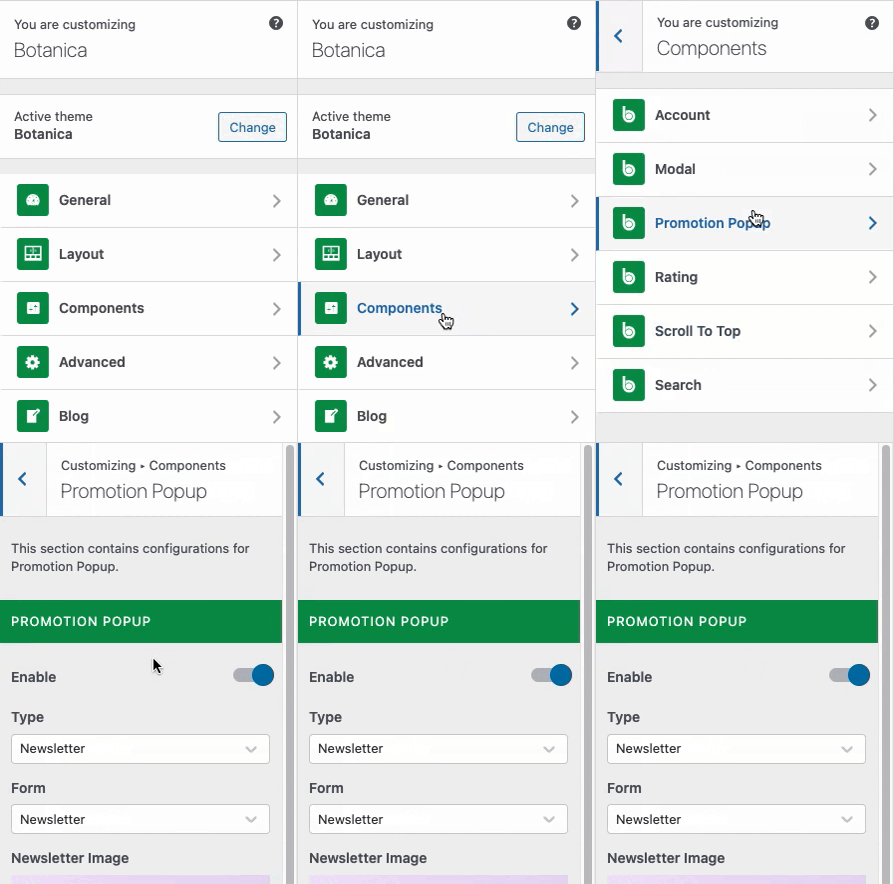
From the **WP Customize Panel**, go to **Components** → **Promotion Popup.**
How To Access
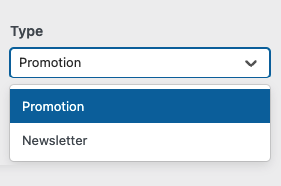
We provide 2 Popup options for you: **Image Popup** and **Newsletter Popup**. Select these two types from the **Promotion Popup Panel** in the "**Type**" option.
Promotion & Newsletter type
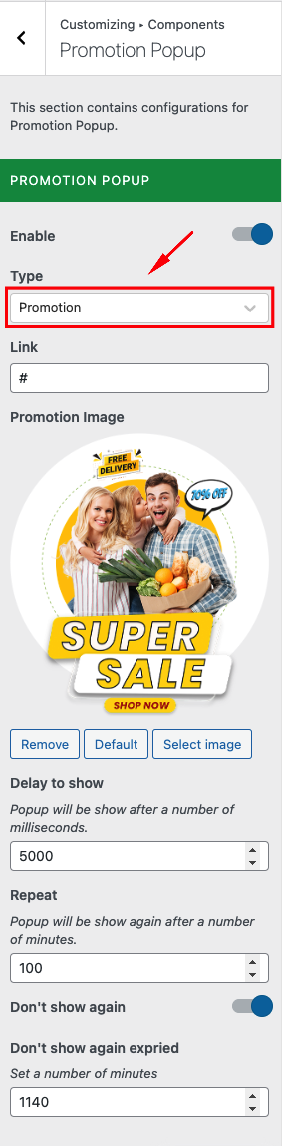
## 1 - Image Popup
You are able to change:
* Upload image promotion popup
* Attach a link to the photo
* Some options display popups
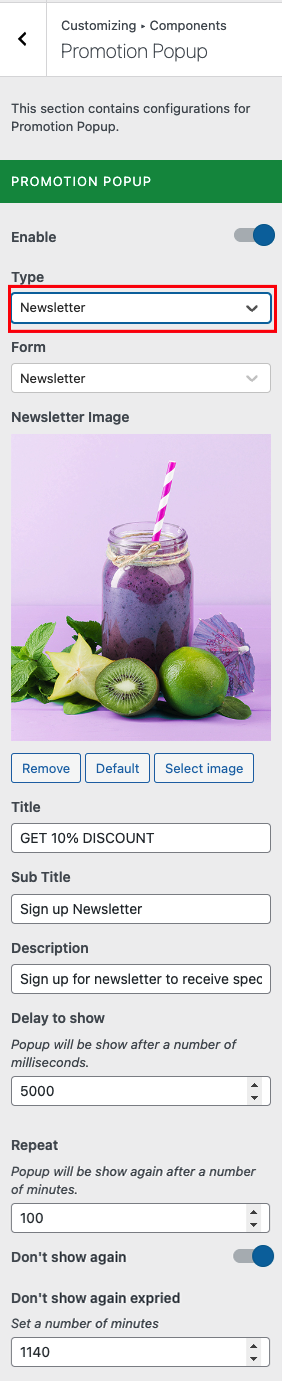
## 2 - Newsletter Popup
You are able to change:
* Image for newsletter background
* Title, Sub Title, Description
* Some options display popups