> For the complete documentation index, see [llms.txt](https://documents.risingbamboo.com/wp-automize/llms.txt). Markdown versions of documentation pages are available by appending `.md` to page URLs; this page is available as [Markdown](https://documents.risingbamboo.com/wp-automize/theme-options/footer-setting.md).
# Footer Setting
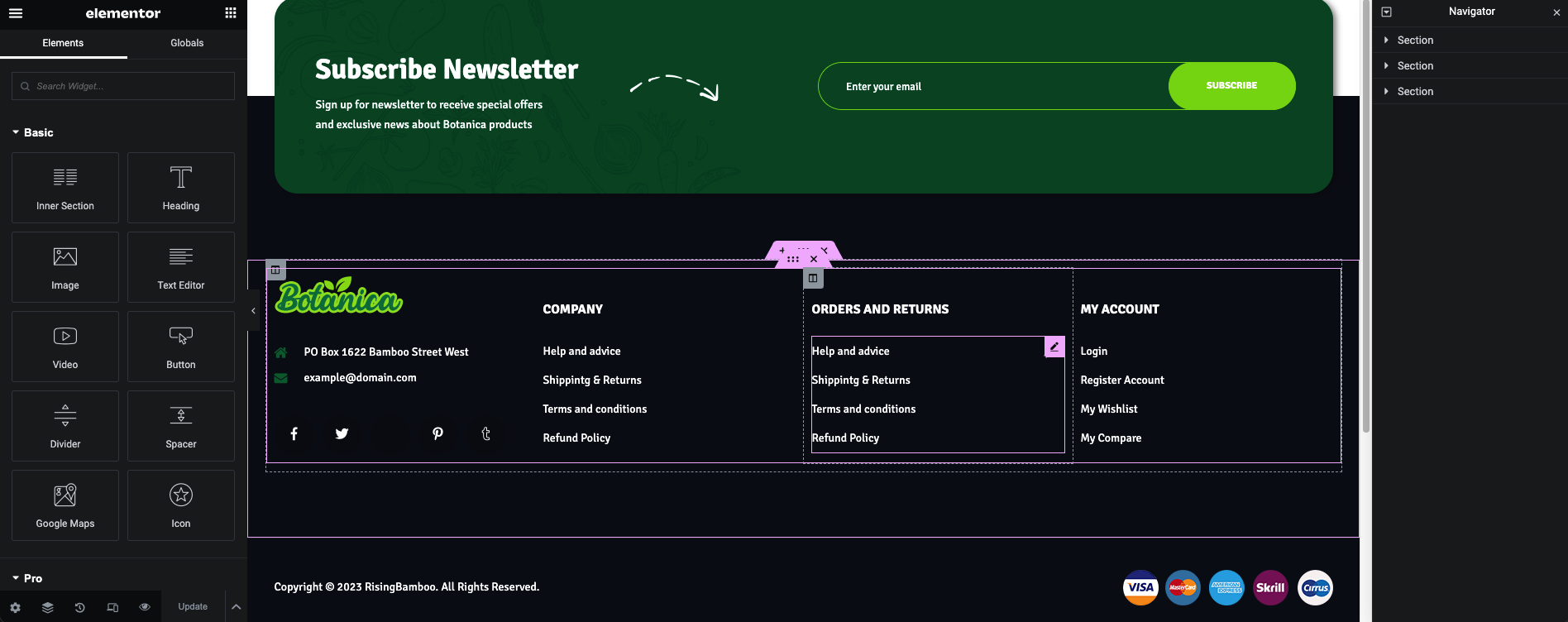
The footer Option allows you to **choose the Footer Style you want**. If you want to customize the Footer, you will edit it in **Elementor**.
## 1 - How to set the default Footer Style
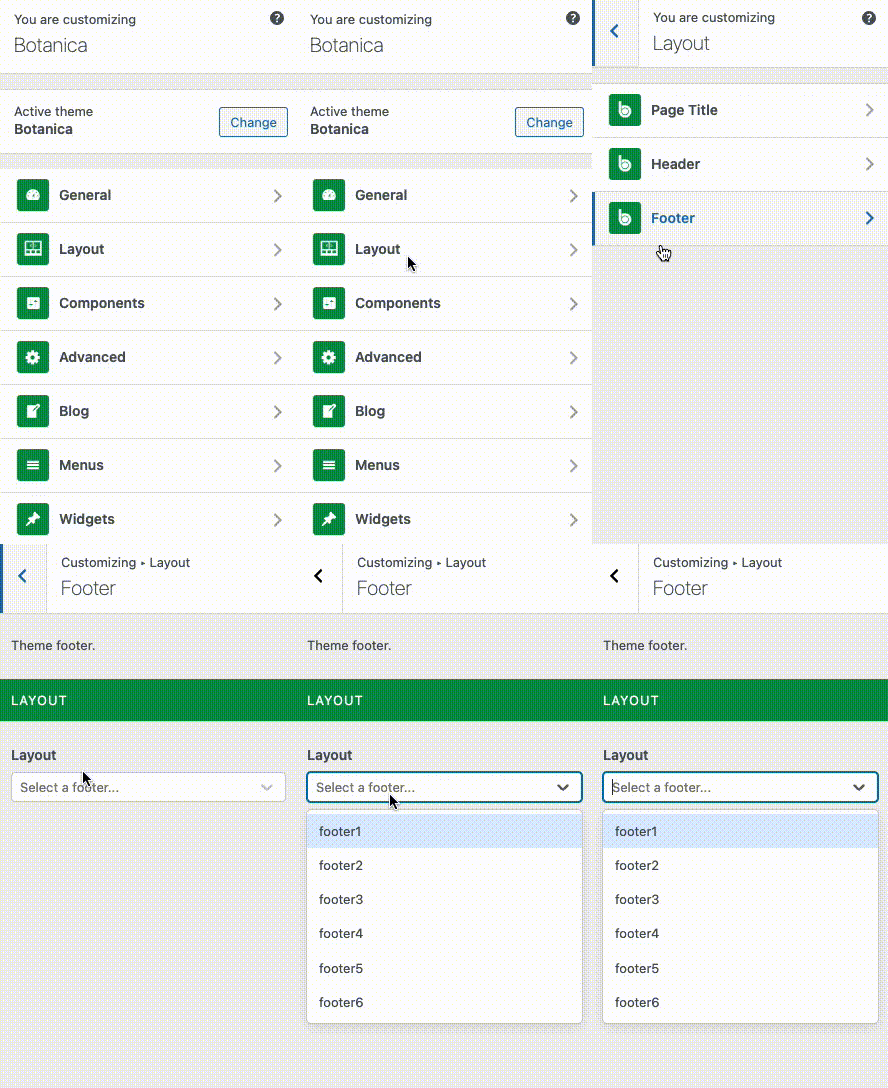
From the **WP Customize Panel**, go to **Layout** → **Footer.**
Select the Footer style you want in the Layout Section.
## 2 - How to customize the Footer Style
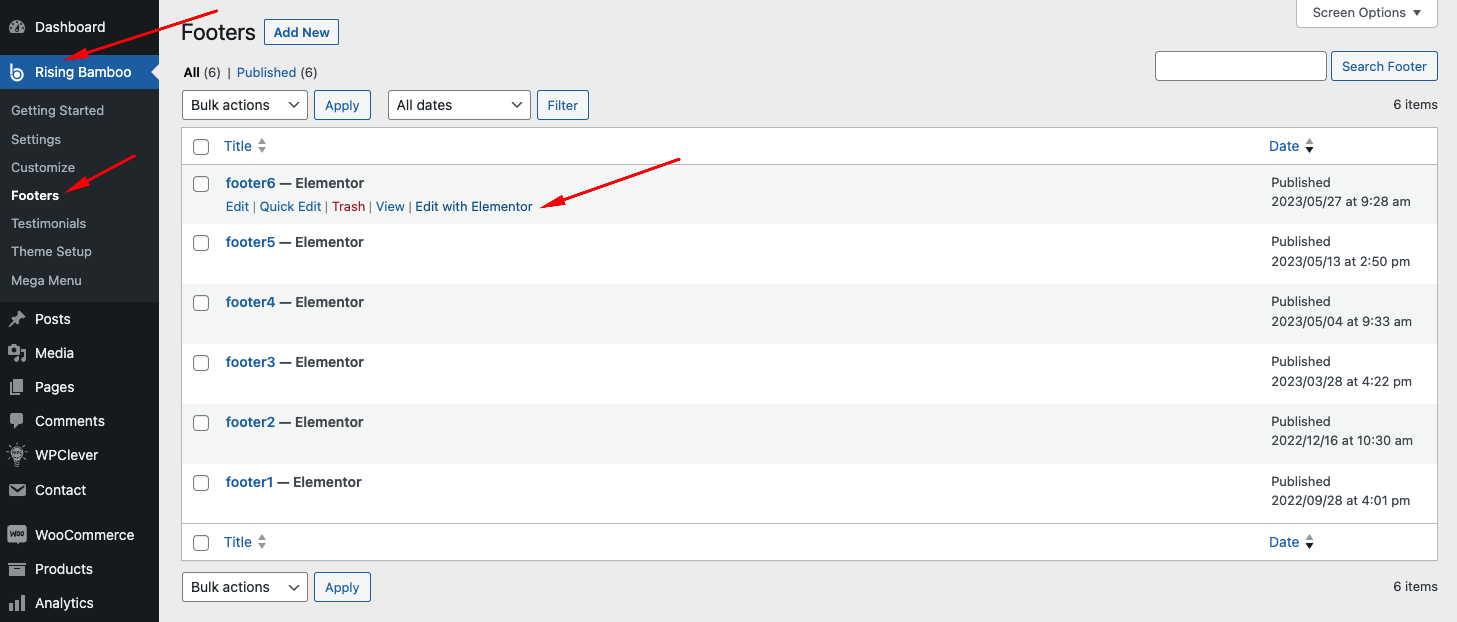
1. **Step 1:** From your **WP Dashboard,** Go to **Rising Bamboo** → **Footers.**
2. **Step 2: ** Select the Footer you want to customize and click "**Edit with Elementor**"